分類
分類Explore the Global Network with Ease! MyVPN macOS / iOS Quick Connection Guide
Bypass restrictions smoothly with Apple's native security framework—no complex setup required.
🛠️ Preparation Before Connection
Before you begin, please ensure you have obtained the following required configuration profile:
-
1. Connection Profile:
Obtain the
vpnclient.mobileconfigApple-specific configuration profile generated by our site. - 2. Native Support (No App Required): macOS and iOS have full, built-in VPN support. There is no need to download third-party software like strongSwan from the App Store. Simply tap the profile below to automatically configure your settings.
輕鬆探索全球網路!MyVPN 手機端 macOS / iOS 快速連線指南
免去繁瑣設定,使用 Apple 原生安全架構流暢翻牆
🛠️連線前準備
在開始連線前,請先確保您已取得以下必備設定檔:
-
1. 連線設定檔:
取得由本站生成的
vpnclient.mobileconfig蘋果系統專用描述檔。 - 2. 內建免 App: macOS / iOS 系統已內建完整的 VPN 支援,不需額外至 App Store 下載 strongSwan 等第三方軟體,直接點擊下方描述檔即可自動設定。
📝簡單步驟,立即開通安全連線
Apple 系統的設定非常直覺,請跟著以下指引操作:
📝 Simple Steps to Activate Your Secure Connection
Setting up on Apple devices is highly intuitive. Please follow the instructions below:
- 1 Download and Install the Profile: Click to download the vpnclient.mobileconfig file. Allow the download when prompted by the system, then navigate to "System Settings" (macOS) or "Settings" > "Profile Downloaded" (iOS) to install and trust it for an instant setup.
- 1 下載並安裝描述檔:點擊下載 vpnclient.mobileconfig 檔案。依系統提示允許下載後,前往「系統設定」(macOS)或「設定」>「已下載描述檔」(iOS)點選安裝並信任,即可完成一鍵設定。

或是往下滑找到 「VPN 與裝置管理」。
點進去後,點擊它進去後,再點選右上角的 「安裝」。
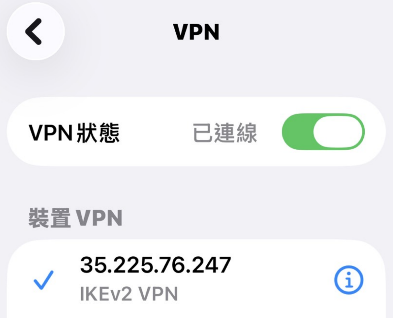
回到「VPN 與裝置管理」開啟「VPN狀態」,輸入密碼通過之後VPN已連線